REST API
The REST API is currently in beta. This means we may change certain endpoints and API responses.
Authorization
You can only access the REST API over HTTPS, and every request needs an API token (also called an access token). You create tokens on the Security tab of your account settings.
API tokens belong to your user account. Organizations don't have tokens of their own, so to call the API on an Organization's projects, use a token from a user account that's on those projects.
Generating a Token
- Go to playcanvas.com/account/security, or in the Project Dashboard, select your name at the bottom of the sidebar, choose Account settings and select the Security tab.
- Under API tokens, select Generate token.
- Enter a Name that says what the token is for, such as
CI publish, and select Generate. - Your new token shows the token. Select Copy, store the token somewhere safe, such as your CI system's secrets, and select Done. You won't be able to see the token again.
A token acts as you in the REST API, so keep it secret. Don't commit it to source control, put it in client-side code or post it on the forum. If a token leaks, revoke it and generate a new one.
Managing Your Tokens
API tokens lists your tokens, with the date each one was created:
- Rename changes a token's name.
- Revoke revokes that token.
- Revoke all revokes all of your tokens.
Both kinds of revoke ask you to confirm first. Scripts and tools that use a revoked token stop working straight away.
Tokens created before 5 November 2026 stop working on 19 November 2026. If your scripts and tools use an older token, generate a new one and swap it in. See the forum announcement.
Using a Token
Set the Authorization header of every request to this value:
Bearer [access_token]
Replace [access_token] with your API token.
For example:
curl -H "Authorization: Bearer nesgdxhiqe7hylfilr6ss1rds0gq1uj8" https://playcanvas.com/api/...
Parameters
Various routes accept a number of parameters. For GET requests if the parameter is not part of the URL, you can pass it as an HTTP query string parameter. For POST, PUT and DELETE requests parameters not included in the URL should be encoded as JSON with a Content-Type of 'application/json'.
There are several common parameters that are used in each endpoint:
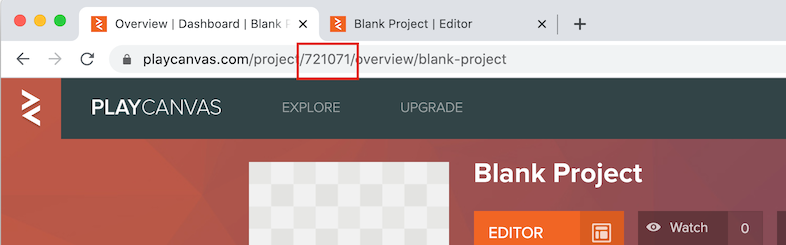
project_id
This can be found in the URL on the project overview page.
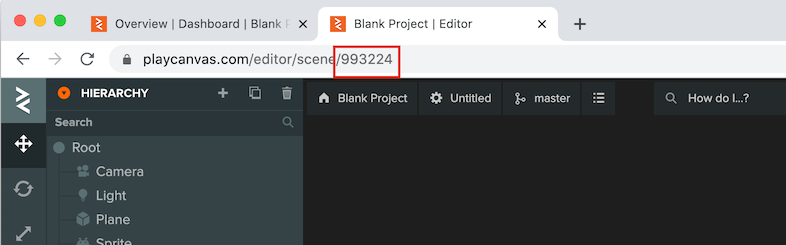
scenes
When opening a scene in the Editor, the scene id is in the URL.
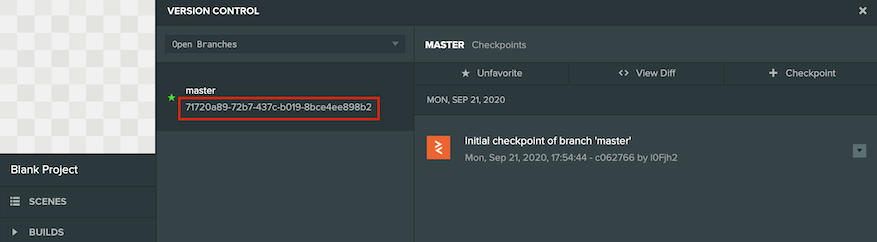
branch_id
This is found in the version control panel and can be selected and copied.
Response Format
Our REST API is following some generic guidelines when it comes to the response format of each API call.
GET resource
If you are trying to GET a single resource the response will be a JSON object with the resource you requested.
GET multiple resources
If you are trying to GET multiple resources like for example listing the Apps of a Project you will get a JSON object with this format:
{
    "result": [
        resource_1,
        resource_2,
        ...,
        resource_N
    ],
    "pagination": {
        "limit": number,
        "skip": number,
        "total": number
    }
}
As you can notice the response in this case also contains pagination data. To control the pagination of the response you can pass the following URL parameters:
| Name | Description |
|---|---|
limit | The maximum number of items to include in the response. |
skip | The number of items to skip from the original result set. |
sort | The name of the field to use to sort the result set. See the documentation of each request to see which values are allowed here. |
order | If you want results in ascending order pass 1 otherwise pass -1 for descending order. |
So for example to get 32 items after the first 16 items you would send this request:
https://playcanvas.com/api/items?limit=32&skip=16
Errors
When an error is raised you will get a JSON object with this format:
{
    "error": "This is the error message"
}
Also the status code of the response will be the appropriate HTTP error code.
Rate Limiting
Calls to the REST API have a rate limit. Check your actual limits by querying this endpoint. There are different rate limits depending on the request:
| Rate Limit Type | Description | Limit for free accounts | Limit for personal/org accounts |
|---|---|---|---|
| Normal | The normal rate limit | 120 requests/minute | 240 requests/minute |
| Strict | The strict rate limit | 5 requests/minute | 10 requests/minute |
| Assets | The assets rate limit | 60 requests/minute | 120 requests/minute |
The response will contain the following headers to help you regulate how often you call the API:
| Name | Description |
|---|---|
X-RateLimit-Limit | The number of requests allowed in a minute. |
X-RateLimit-Remaining | The remaining number of requests that you are allowed to make this minute. |
X-RateLimit-Reset | The time at which the current rate limit window resets in UTC epoch seconds. |
If you exceed the rate limit you will get a 429 Too Many Requests status code. You will have to wait for the current window to reset in order to continue making requests.