Streaming & Performance
When you publish from the Editor or directly upload a splat, SuperSplat compresses it to the SOG family of formats for fast delivery. Large splats are automatically converted to Streamed SOG so they load quickly and run smoothly on any device.
How your splat is compressed
A published splat takes one of two forms:
- SOG — the splat is compressed to a single, non-streamed
.sogfile. - Streamed SOG — SuperSplat generates a set of levels of detail (LODs) using splat-transform, halving the Gaussian count at each level (decimation), and compresses them into a Streamed SOG bundle: a
lod-meta.jsonindex plus per-LOD.sogchunks. Larger splats produce more levels, so expect some extra back-end processing time after upload.
Which one you get depends on how you publish:
- From the Editor, the Generate LODs toggle in the Publish Settings dialog decides. It's on by default for scenes of 1 million Gaussians or more that span a large area. Scenes of more than 40 million Gaussians must be streamed, so for them the toggle is switched on and can't be turned off.
- With Direct Upload, a PLY or SPZ file gets an Auto generate LODs checkbox, ticked automatically at 1 million Gaussians or more; you can override it before publishing, except above 40 million Gaussians, where it is locked on. A SOG file is published as a single file, and splats uploaded as a pre-built LCC or SSOG archive are always streamed.
Near-instant loads and the Gaussian budget
A Streamed SOG splat loads progressively: the viewer shows the scene as soon as the lowest level of detail is ready, then fills in finer detail as it streams in. This gives near-instant time-to-first-frame even for very large scenes. The loading bar tracks the streamed files, and any collision data keeps loading in the background after the scene appears.
At runtime the viewer enforces a Gaussian budget — a cap on how many Gaussians are drawn at once — so the scene stays within a sensible amount of memory and renders at a good frame rate. Visitors choose the budget with the Quality slider in the viewer's settings panel, from a ladder for their device:
| Device | Performance | Default | High | Max |
|---|---|---|---|---|
| Desktop | 2M | 4M | 8M | 16M |
| Phones, tablets and headsets | 1M | 2M | 4M | 8M |
| Meta Quest and Pico, during a VR or AR session | 0.5M | 1M | 2M | — |
Phones and tablets start at Performance and other devices at Default; the viewer remembers the visitor's choice. Positions the device doesn't have the memory for are disabled. At Performance, the viewer also renders at half resolution (0.8× in a Meta Quest or Pico session), unless Performance Mode is on. When you host the viewer yourself, the budget URL parameter sets the budget for every position.
As the camera moves, the viewer raises and lowers the level of detail across the scene to stay within this budget — so you get consistent performance and bounded memory use on everything from a phone to a desktop. In a VR or AR session, detail is chosen by distance alone, so turning your head doesn't stream new detail.
To see it at work, turn on the viewer's colorize URL parameter, which tints each level of detail its own color:
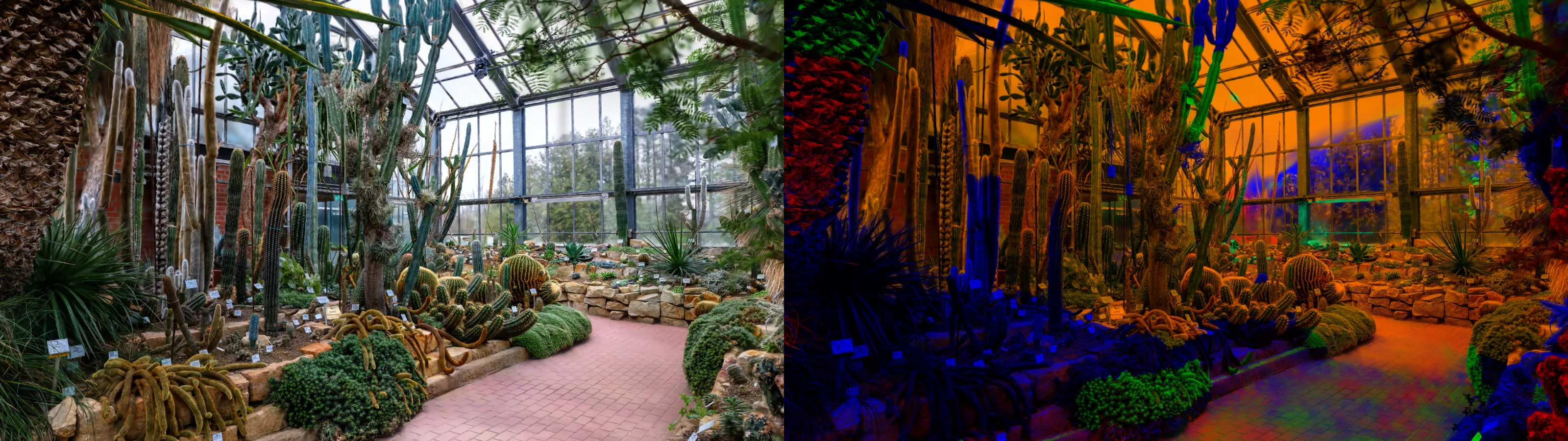
A splat that isn't streamed is drawn in full whatever the budget; for it, the Quality slider only changes the resolution at Performance.
Bringing your own LODs
Advanced users can skip the automatic step and supply a pre-built Streamed SOG bundle:
- Generate one with the splat-transform CLI (use
--decimateto build the LOD levels), then directly upload the resulting bundle. - Or build one in your browser with the Streamed SOG tab of Convert, then upload its zip.
See also
- Direct Upload — upload a ready-made splat
- splat-transform — generate Streamed SOG bundles yourself
- Streamed SOG (developer guide) — using Streamed SOG in your own PlayCanvas apps